How to Use
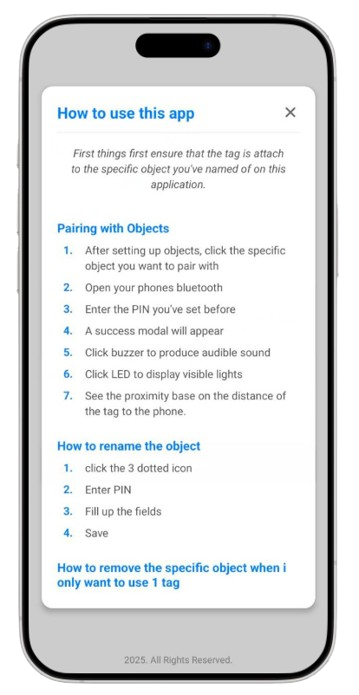
Complete setup guide and step-by-step instructions for Search It.
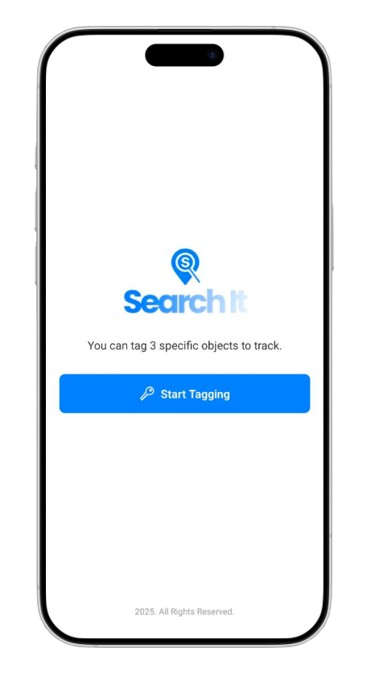
Initial Setup - Welcome Screen
When you first open the app, you'll see the landing page with a "Start Tagging" button to begin setting up your first object.
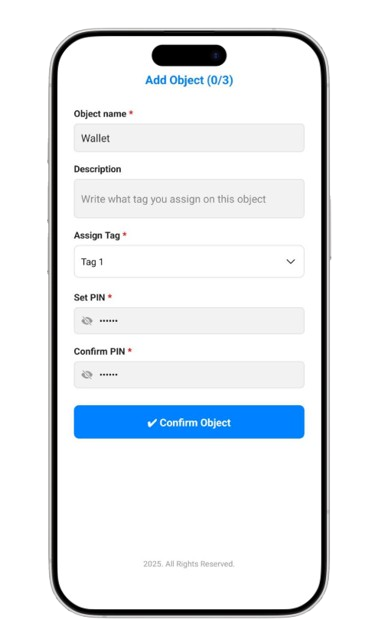
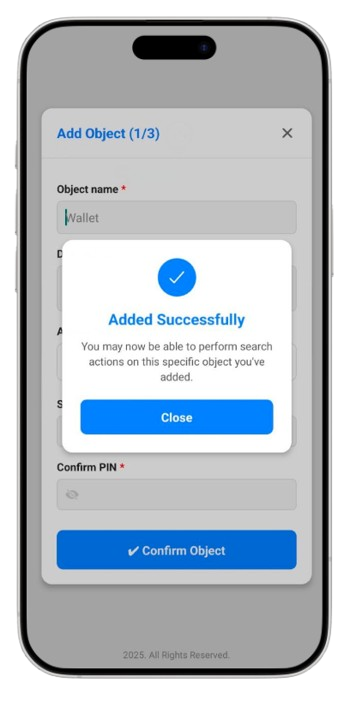
Add Your First Object
Fill in the object details: name, description (optional), assign a tag (1-3), and set a 6-digit PIN for security.
Permission Requirements
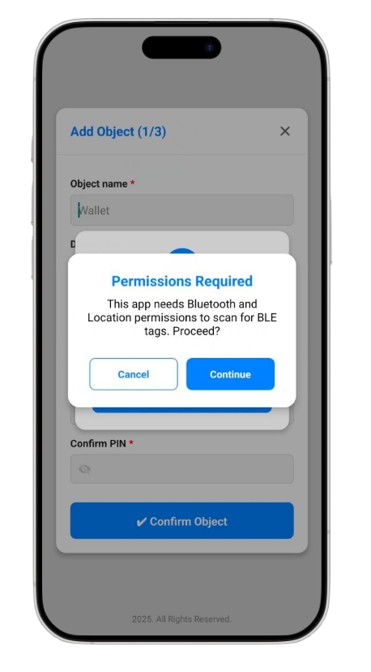
The app requires Bluetooth and location permissions to scan for nearby BLE devices. Click "Continue" to proceed.
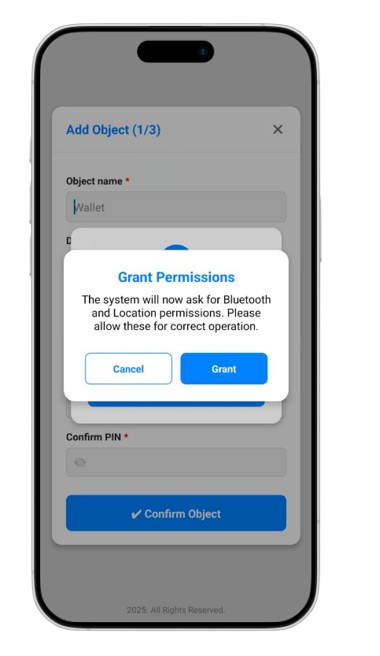
System Permissions
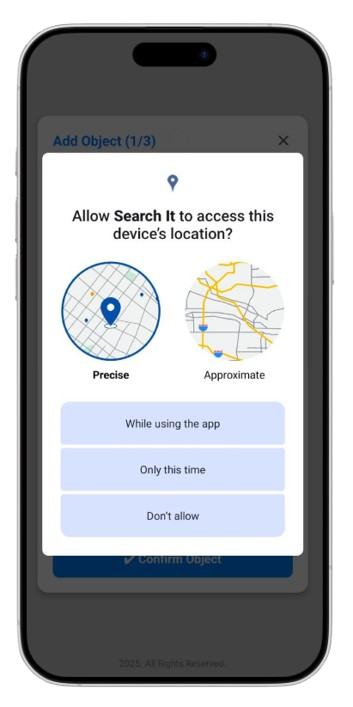
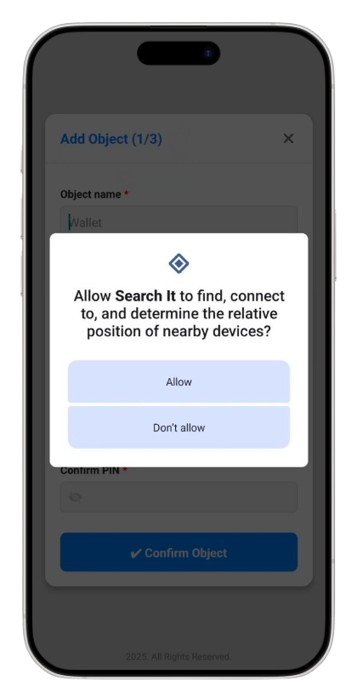
Allow the necessary system permissions for Bluetooth and location access to enable device discovery and connection.
Setup Complete
Success! Your first object has been added. You'll now see the main dashboard where you can manage all your tracked items.
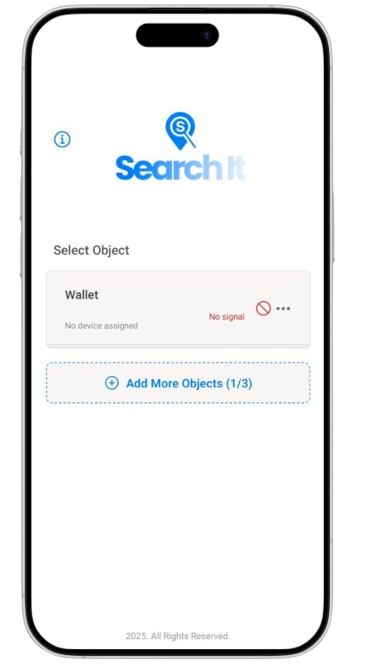
Main Dashboard
This is your new starting point. From here you can view all objects, access help guides, and manage your tags.